
The app (UI)
The app is an Electron shell around a React frontend. Navigation uses a hash router—six routes, each a full-screen view.
Gallery
The main screen. Everything you do with wallpapers starts here.
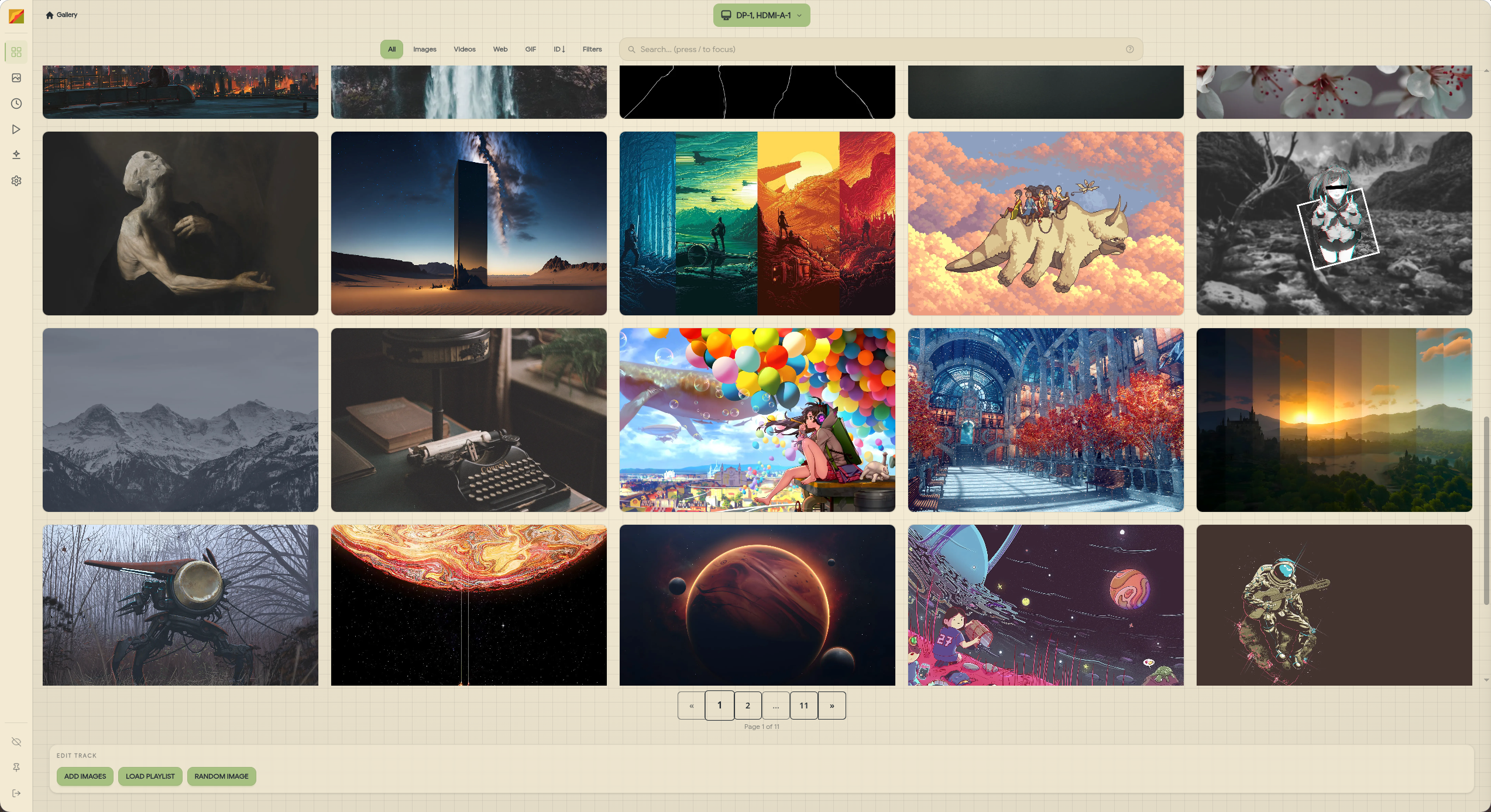
Importing:
- Drag-and-drop images, videos, folders, or a web wallpaper manifest (
project.json) directly onto the window. - Click the import button in the toolbar to browse files.
- Paste an
https://URL to import from the web (where the active backend supports it). - Supported formats: JPG, PNG, GIF, WebP, BMP, SVG, TIFF (images); MP4, WebM, MKV, MOV (videos).
- Import progress is shown inline and reported live via SSE
processing_*events.
Browsing:
- Filter by media type (image, video, GIF, web), tags, dominant colors, or folder.
- Color filter: click swatches to filter by palette, or use perceptual matching (
colors_near). - Search: fuzzy name/tag search in the toolbar.
- Sort: by name, import date, or file size—ascending or descending. Persisted in config.
Setting a wallpaper:
- Double-click any image to set it on the current monitor configuration.
- Right-click for the context menu: set on specific monitor, set random, move to folder, rename, add tags, delete.
Selecting for playlists:
- Hover an image to reveal a checkbox in the corner. Check multiple images, then open the playlist panel to add them to a new or existing playlist.
Image detail:
- Click the image name or use the context menu to open the detail sidebar.
- Edit tags, view metadata (dimensions, size, format, import date, colors).
- Palette swatches — click a swatch to seed a color filter; long-press / right-click deletes a swatch.
- Rename on disk — renames the file on disk and updates the database in one step.
- Footer is sticky: set / delete / save without scrolling.
History navigation:
- The history button (or the History route) shows a per-monitor log of every wallpaper change with source (manual, random, playlist). Navigate back and forward.
Settings (/settings)
Settings open as a modal with four tabs: General, Daemon, Backend, Wallhaven. Changes save immediately and sync to the daemon via PATCH /config. See also Configuration (TOML) for the on-disk format and Daemon & paths for socket layout.
General
The renderer-side tab. Four sub-sections.
Theme & Appearance
- Theme — DaisyUI preset list, or
systemto follow the OS dark/light setting. - Font preset — bundled Kolision, bundled Google Sans, the OS UI stack, or
custom(you supply CSSfont-familystrings). - UI Scale —
compact/default/comfortable/large. Scales the renderer including the sidebar rail and icons. Useful on HiDPI monitors or for accessibility. - Neobrutalist radius — slider wired to the
--wp-radius-*tokens; affects gallery cards, sidebar, and playlist track.
Behavior
| Setting | What it does |
|---|---|
| Kill daemon on exit | Stop the daemon when the Electron window closes. Default off (daemon keeps running). |
| Notifications | Enable/disable desktop notifications. |
| Start minimized | Hide the window on launch (useful for autostart). |
| Minimize instead of close | Send to tray on window close button. |
| Show monitor modal on start | Pop the monitor selector every time the app opens. |
| Startup intro | Show the welcome animation on launch. |
Import
- Skip URL import warning — suppress the warning dialog when pasting
https://URLs into the gallery.
Restore defaults
- One-shot reset of daemon-side settings.
Daemon
Daemon-owned knobs that round-trip through PATCH /config.
- Monitors — pick active outputs.
- Image set type —
individual(per-monitor),clone(same image everywhere), orextend(one image sliced across all monitors by the daemon). - Images per page — gallery pagination size (1–200).
- Image history limit — max wallpaper history entries before oldest are trimmed.
- Sort defaults — default field and direction for the gallery.
Backend
Pick which backend sets your wallpaper. Backend list and capabilities come from Backends & dependencies; auto mode reads each backend's declared Capabilities (see What changed in v3).
- Type —
awww,hyprpaper,feh,mpvpaper, orwal-qt. Backends whose binary is missing onPATHare greyed out. - Selection mode
fixed— always use the selected backend.auto— pick the best available backend per media type, using priority lists.
- Auto priority lists — when
autois active, set ordered preference lists for images, videos, and web wallpapers independently. - Per-backend config — each backend has its own panel (transitions for awww, mpv options for mpvpaper, etc.).
Wallhaven
- API key — paste your Wallhaven API key for NSFW content and user collections. Leave blank for anonymous browsing.
- Scroll mode —
paginatedorinfinite(auto-loads the next page). - Blur NSFW thumbnails — blurs NSFW results in the route; unblurs on hover. Default on.
Wallhaven (/wallhaven)
Browse and download from wallhaven.cc without leaving the app. The route mirrors the gallery's interaction model — set, download, or queue into a playlist directly from a card.
Search & query
- Wallhaven's full query syntax in the search bar (
#tag,-#tag, etc.). - Sort: date added, relevance, random, views, favorites, top list.
- Categories (General / Anime / People) and Purity (SFW / Sketchy / NSFW). NSFW requires an API key.
Filters
- Ratios — preset chips (16:9, 21:9, etc.) plus custom.
- Colors — pick from Wallhaven's swatch palette to filter by dominant color.
- Hide saved — hides any result already in your local gallery.
Card features
- Resolution-match badge — exact / good / poor vs. your largest monitor.
- NSFW chip + thumbnail blur (toggle in Settings → Wallhaven) — unblurs on hover/focus.
- In Gallery chip when the image is already imported.
- Hover overlay exposes Set wallpaper, Download to gallery, and a playlist menu.
Detail modal
- Full-resolution image, modal scales to viewport.
- Clickable tags — click any tag to seed a fresh search for
#tagname. - Per-monitor Set popover, palette swatches with click-to-search.
Scroll modes
paginatedorinfinite(configured in Settings → Wallhaven).- Back-to-top button appears once you scroll past the fold.
History (/history)
Every wallpaper change is logged here: what was set, on which monitors, by what source (manual, random, playlist name). Filter by monitor or clear the log.
You can re-apply any historical wallpaper by clicking it.
Looper Studio (/loop-studio) — beta
Set in/out points on videos from your library and preview the loop in real-time. Optionally export the trimmed loop to a new file via ffmpeg (requires ffmpeg on PATH).
This is a beta feature—expect rough edges. The exported file can be imported back into the gallery.
Shader Studio (/shader-studio) — beta
WARNING
This function is beta, not all imported wallpapers will work out of the box, you will have to do some tinkering on your own.
Import Shadertoy JSON exports (multipass shaders included) and preview them with a live WebGL2 renderer. When you are happy with the result, save it as a web wallpaper package into the gallery—it shows up as a web media type image and can be set via the wal-qt backend.
Steps:
- Export your shader from shadertoy.com as JSON.
- Drag the JSON file into Shader Studio (or use the import button).
- Tweak uniforms or code in the editor—preview updates live.
- Click Save to gallery to package and import.
Tray
Where the desktop environment supports a system tray, Waypaper Engine places a tray icon. Right-click it for quick actions: show/hide window, set random wallpaper, pause/resume playlist, quit.